LAST UPDATED: 4/1/26 – Enhance Sunset Photos in Eight Easy Steps
We’ve all watched an incredible sunrise or sunset, snapped a bunch of photos, and then gotten home only to find that the images look flat and disappointing. Don’t be hard on yourself—your camera isn’t failing you, and you’re not doing anything wrong. The simple truth is that your eyes can process color, contrast, and light far better than any camera sensor ever will, so the sky you remember will almost always look richer and more vibrant than what your camera captures.
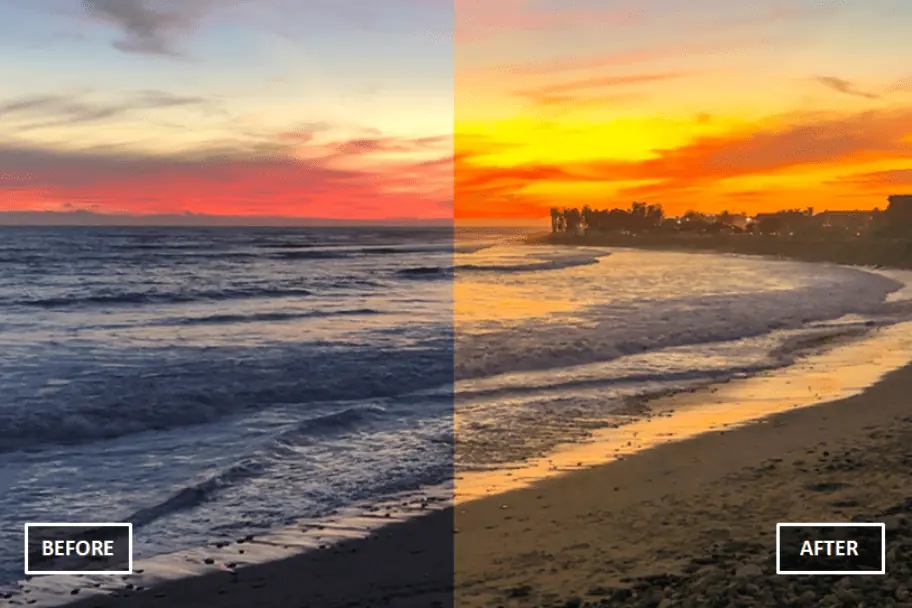
In this guide, I’ll walk you through an easy eight‑step process for enhancing sunset photos right on your smartphone. The steps are simple, beginner‑friendly, and designed to bring back the vivid reds, oranges, purples, and yellows you saw in person.
Before we get into the editing process, it helps to understand why these photos often look dull in the first place. Even with good technique and proper camera settings, sensors struggle with the dynamic range of a bright sky and a darker foreground. As a result, your images may come out too dark, washed out, or lacking the dramatic color you remember.
The good news is that most of these issues can be fixed with quick post‑editing. With just a few adjustments, you can transform an underwhelming photo into something that truly reflects the beauty you experienced.
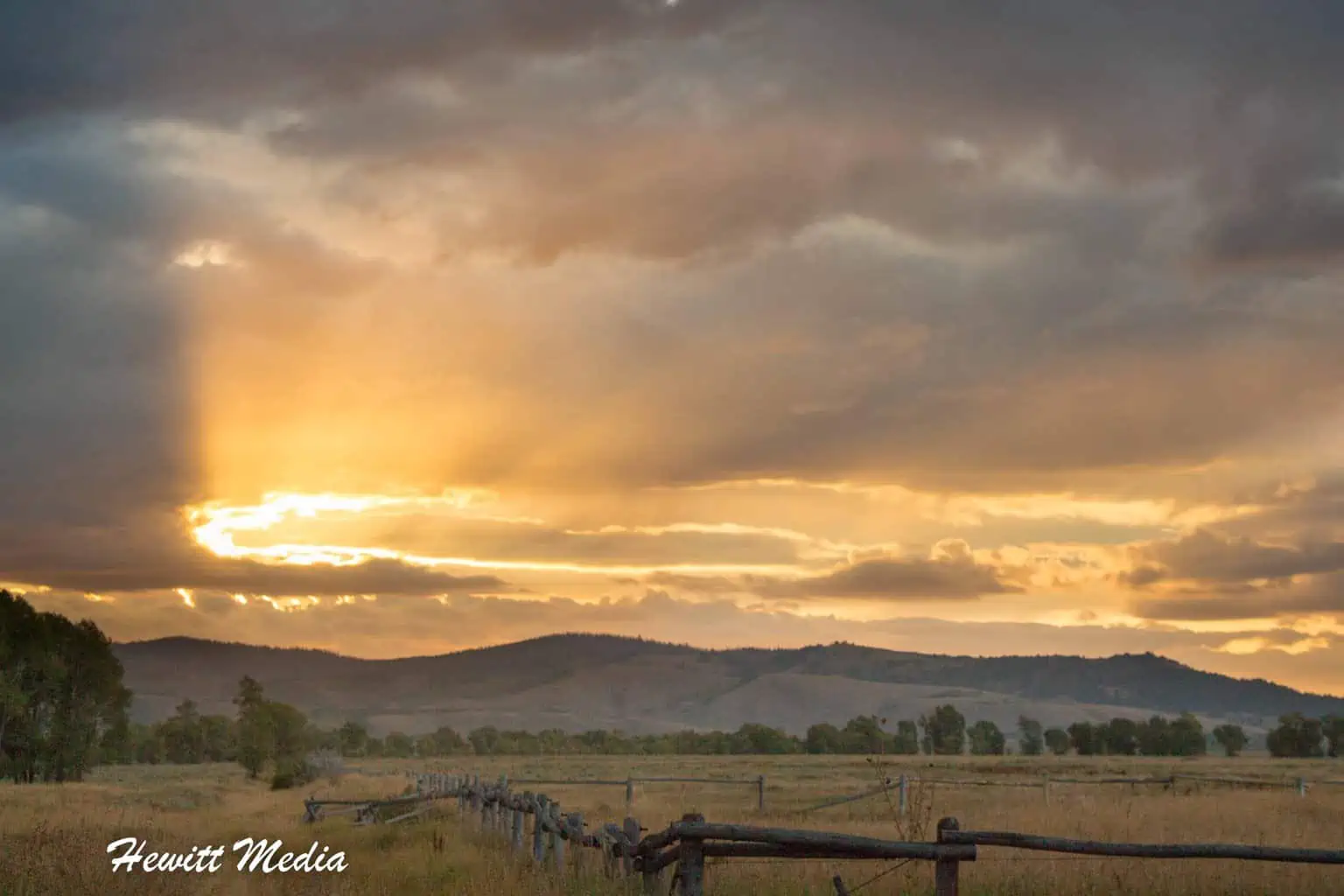
How to Predict Sunrises and Sunsets
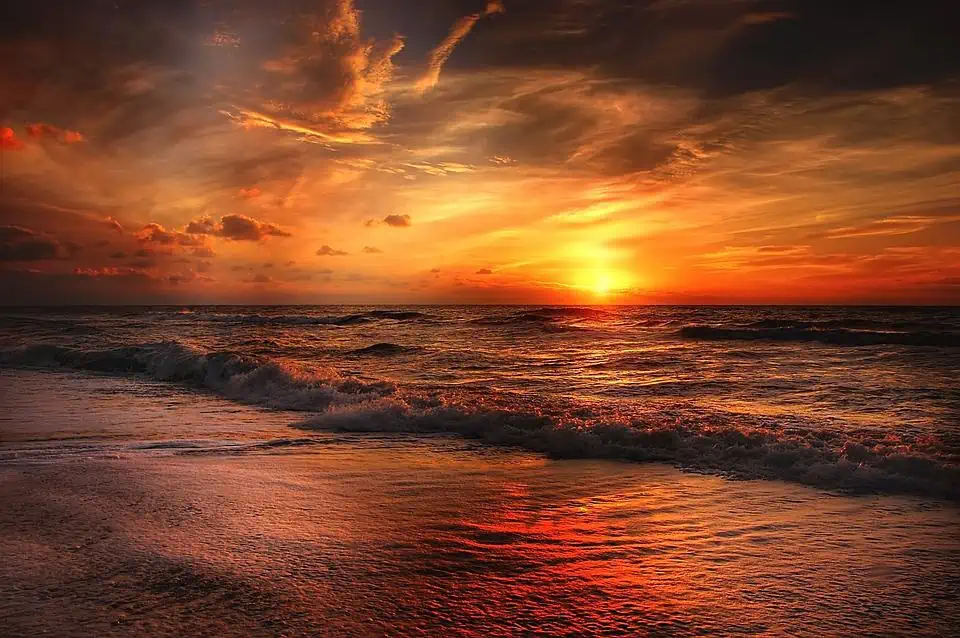
Before you can even worry about how to enhance sunset photos, you need to find a sunrise or sunset to photograph. While many of the amazing sunrises and sunsets that you have seen in your life may seem like nice surprises, there is a fairly straightforward process that you can use to take at least some of the mystery out of these events.
No, you won’t be able to predict great sunrises and sunsets like a photographic Nostradamus. Still, if you understand the environmental factors that make them more likely to occur, you will be ready to photograph more of them. For more information on how to predict amazing sunrises and sunsets, please refer to my guide below.
| READ MORE: |
 |
| Predicting Amazing Sunrises and Sunsets |
How to Enhance Sunrises and Sunsets
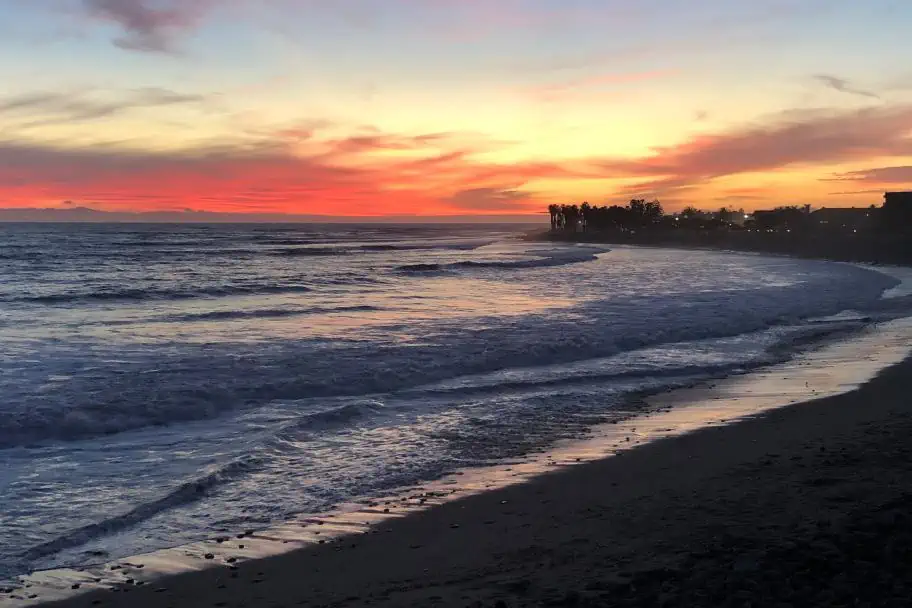
If you follow me on Instagram (and I really appreciate your support if you do), then this photograph I took of a sunset I saw in Ventura, California, probably looks vaguely familiar. However, the photograph that you remember from my feed is a lot more detailed, vibrant, and colorful. While this picture is pretty, it isn’t nearly as beautiful as the scene I remember from my trip.
The beach in the foreground and the city in the background are almost totally obscured by shadows; there is very little detail in the waves, and the sky that I remember being on fire with color looks fairly muted in this picture. In this guide on how to enhance sunset photos, I am going to use this photograph to teach my simple eight-step process to you.
Step 1: Get the Adobe Lightroom App
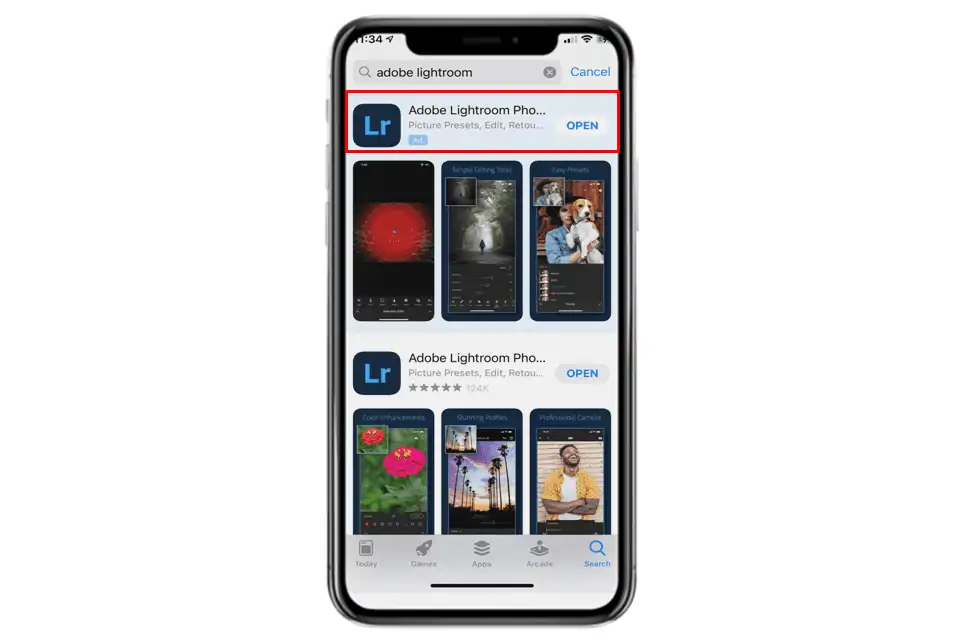
The first step that you need to follow to enhance sunset photos is to make sure you have the right app to edit your photographs. There are a lot of photo editing apps out there, but in my opinion, Adobe Lightroom is the best.
In addition to being one of the most popular photo editing desktop applications on the market, Adobe has also published a Lightroom app for iOS and Google Play that is very affordable. If you use another app for photo editing that has all of the features I reference in this article, I encourage you to follow along with the application you are most comfortable with.


Step 2: Open Your Picture in Adobe Lightroom
 |
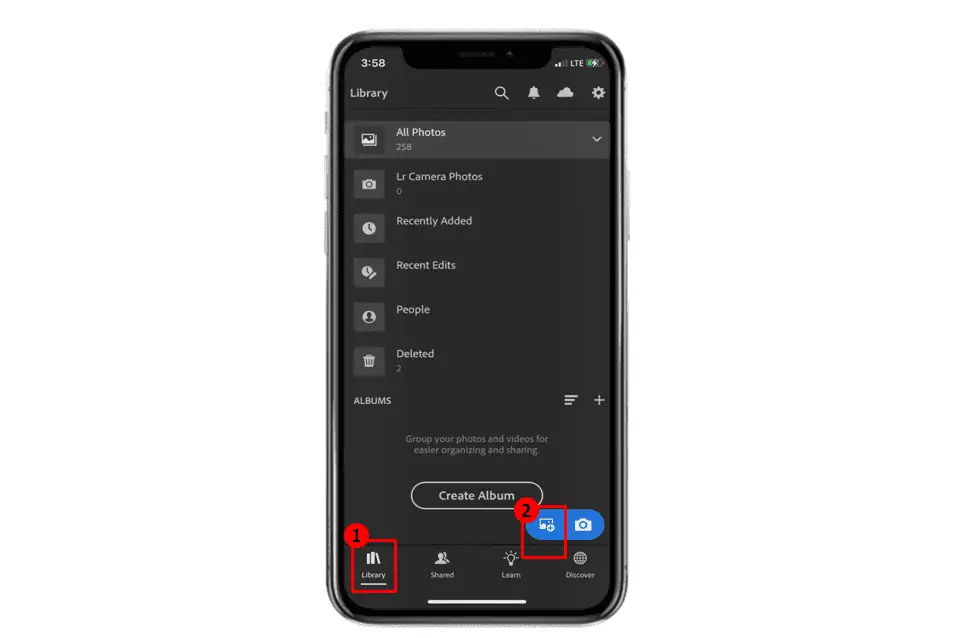
Select the Library icon to show your picture library. |
 |
Use the Select Photo icon to select a photo to add to Lightroom. |
Once you have the Adobe Lightroom app installed on your computer or phone, the first thing you need to do is open the photo you wish to edit. To do so, you will need to choose your Library and then select the Add Photo icon to browse for a photo to add to Adobe Lightroom (as shown above).
Step 3: Reduce the Highlights and Lift the Shadows
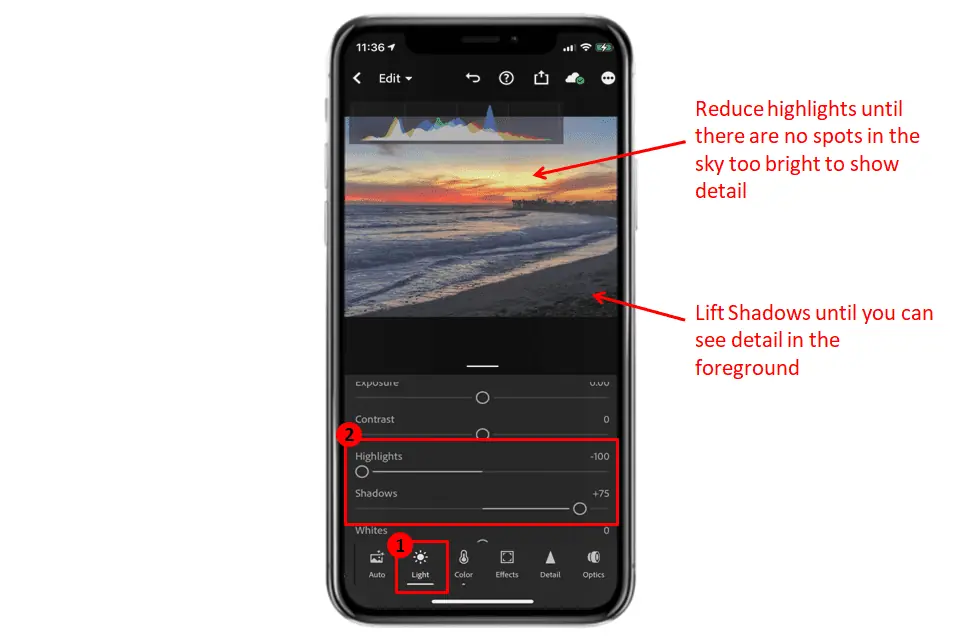
Once your photo is in Adobe Lightroom, start by adjusting the highlights and shadows. Highlights are the bright areas where the camera captured too much light, often appearing nearly white—typically in the sky or reflective surfaces. Shadows are the dark areas where the sensor didn’t capture enough light, leaving parts of the image lacking detail.
In my example photo, the beach and city foreground are buried in shadows, making those details hard to see. There’s also a bright patch of sky near the sun with strong highlights. That’s common in sunrise and sunset shots, but reducing those highlights will help bring back cloud detail and balance the image.
In Low Light, Keeping Your Camera Still Is Important
Pro Tip: When shooting in low light—like at sunrise or sunset—keep your camera or phone as still as possible. With less light, the sensor stays open longer, which makes your shot more vulnerable to Camera shake, where even tiny movements can blur the image. A small travel tripod helps a lot, and there are lightweight options made for phones. Also, try to avoid scenes with nearby moving objects, since they’re more likely to blur in low light.
Step 4: Adjust the Temperature and Saturation
|
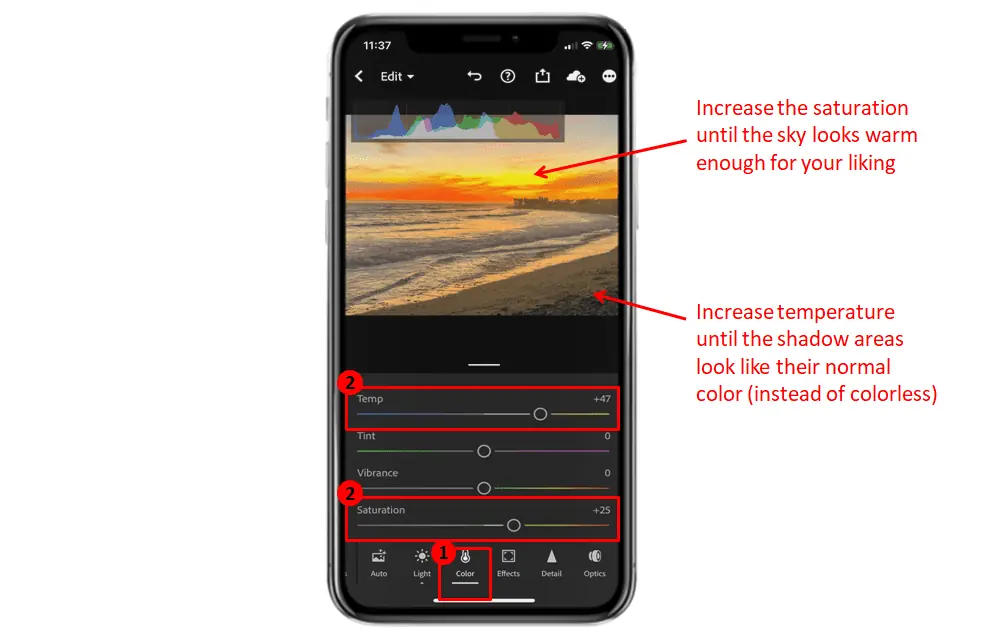
Select the Color tab at the bottom of the application screen. |
|
Increase the Temperature and Saturation of your image until you like how it looks. |
Now that you’ve reduced the highlights and shadows, you should see much more detail in both the foreground and the sky. The next step is to bring the sunset colors back to life, since your photo may look less vibrant than what you remember. This isn’t your fault—just as your camera struggles with light, its sensor also interprets temperature and saturation less accurately than your eyes.
In photography, Temperature refers to how warm or cool the light appears. Warm light has a yellow tone, while cooler light looks more blue or neutral. In low‑light situations—like cloudy days, shade, or sunrise and sunset—cameras often under‑sense warmth. That can leave shadows looking cold and colorless and make bright areas appear far less vivid than they were in person.
Increasing the Temperature of Your Photo Will Bring the Colors Back to the Dark Areas
Two easy ways to correct the temperature issues in sunrise and sunset photos are to increase the temperature or boost the saturation. Saturation controls the intensity of the colors, and raising it helps counter the muted tones your camera often produces in low light. When I enhance sunset photos, I usually increase both temperature and saturation, adjusting each based on what the image needs. In Adobe Lightroom, open the Color tab and raise these sliders until the photo looks right to you.
Step 5: Dehaze the Photograph if Necessary
|
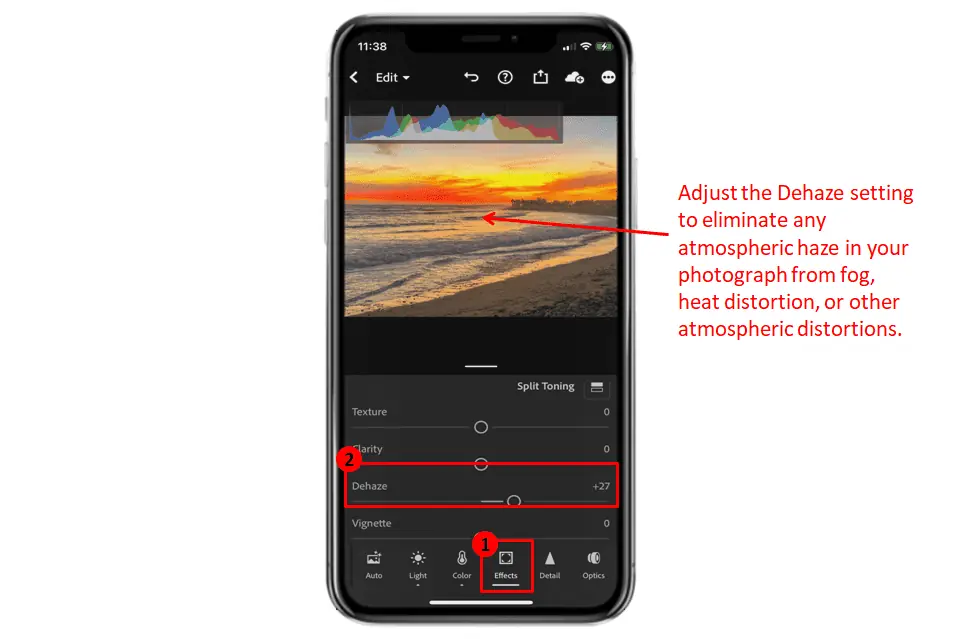
Select the Effects tab at the bottom of the application screen. |
|
Increase the Dehaze feature until your photograph looks clear enough for your liking. |
Now that you’ve adjusted the temperature and saturation, your photo should already look much closer to the sunset you remember. The sky will appear more vibrant, and the areas where you lifted the shadows should look warmer and more natural. But to really make your image stand out, the next step is to remove some of the atmospheric haze caused by heat distortion, fog, or other conditions.
You can do this using the Dehaze feature in Adobe Lightroom. Open the Effects tab and adjust the Dehaze slider until the image looks clearer. Just be careful not to push it too far—overdoing it can make the photo look unnatural. If that happens, simply dial the Dehaze amount back until you’re happy with the result.
Step 6: Zoom in and Check for Noise
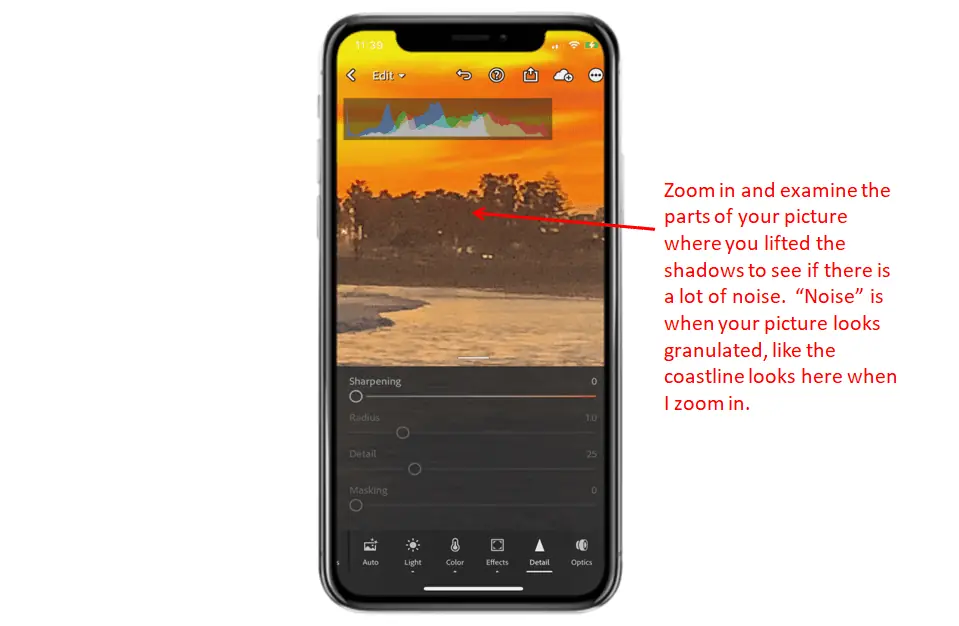
The final step in enhancing sunset photos is removing unwanted noise. In photography, Noise is a distortion caused when the camera’s sensor can’t properly interpret the light in certain parts of the image. It often appears in areas where you lifted shadows or reduced highlights, since those regions may not contain enough data and can look grainy or pixelated.
Before finishing your edit, zoom into the darkest parts of the photo and check for grain or pixelation. If those areas look rough or speckled, there’s noise present, and you’ll want to correct it.
Step 7: Remove the Noise if Necessary
|
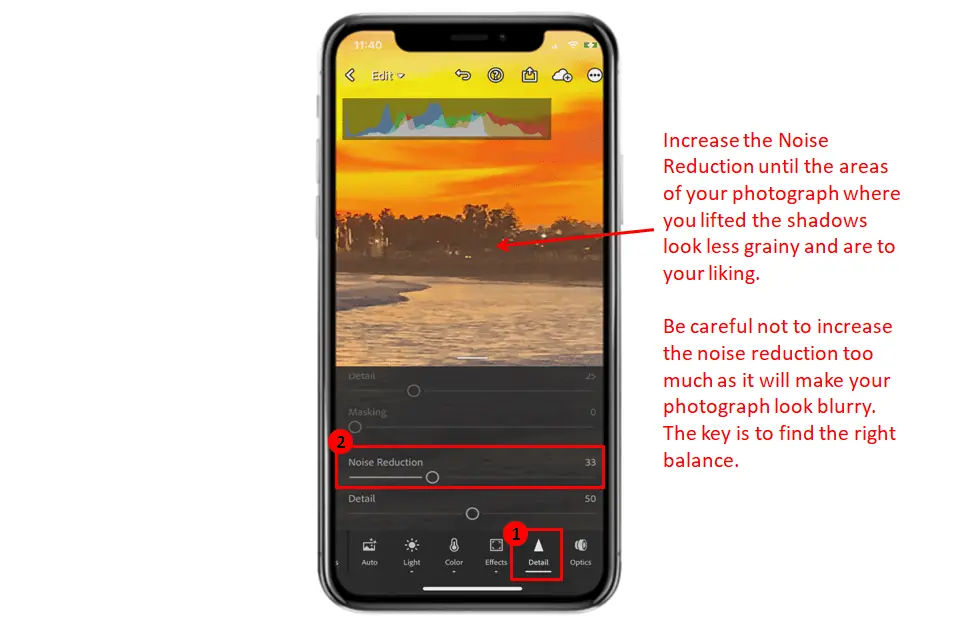
Select the Noise Reduction tab at the bottom of the application screen. |
|
Increase the Noise Reduction feature until you are satisified the noise in your photograph has been corrected. |
If you spot noise in your image, don’t worry—mild noise is often easy to fix. Open the Detail tab and adjust the Noise Reduction slider until the grainy or pixelated areas look smoother.
Keep in mind that Noise Reduction affects the entire image, not just the noisy spots, so pushing it too high can make the photo look soft or blurry. As a general rule, avoid going much above 35. If you still see noise at that point, it may be better to go back to Step 3 and reduce how much you lifted the shadows or highlights. Finding the right balance may take a little back‑and‑forth.
Step 8: Export and Share Your Photograph
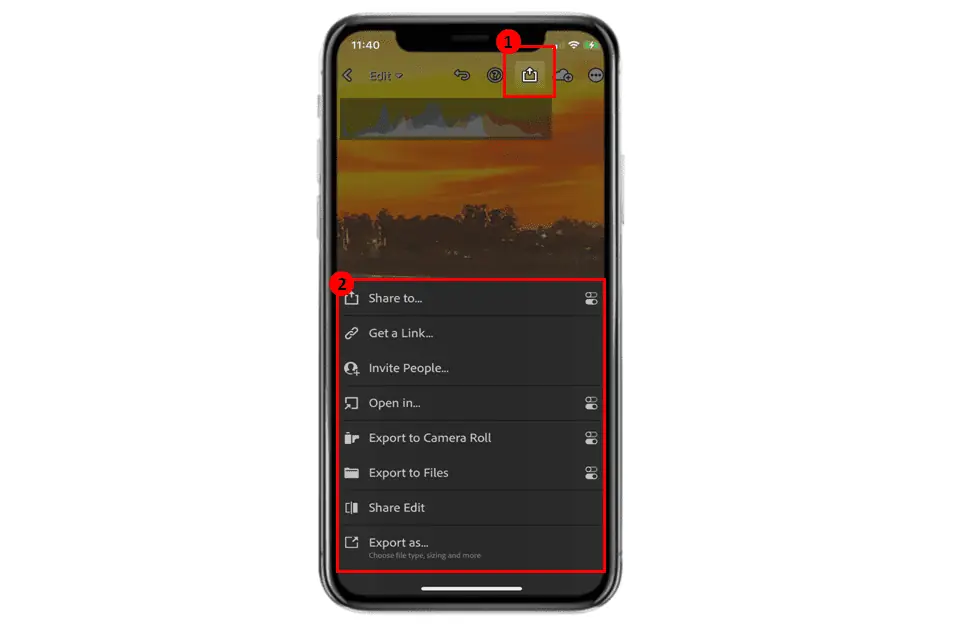
| Select the Export button on the top toolbar of the application window. |
| Choose the method in which you would like to share your photograh. |
Now that you have enhanced your sunrise or sunset photo, it is time for you to share it with your family and friends. To do that, you will have to first export the edited photo out of Adobe Lightroom to your computer or your phone’s camera roll. While viewing your final photo from within the Adobe Lightroom app, select the Export button on the top toolbar and then select the method you would like to use to share the image (as shown above).
The Finished Photograph
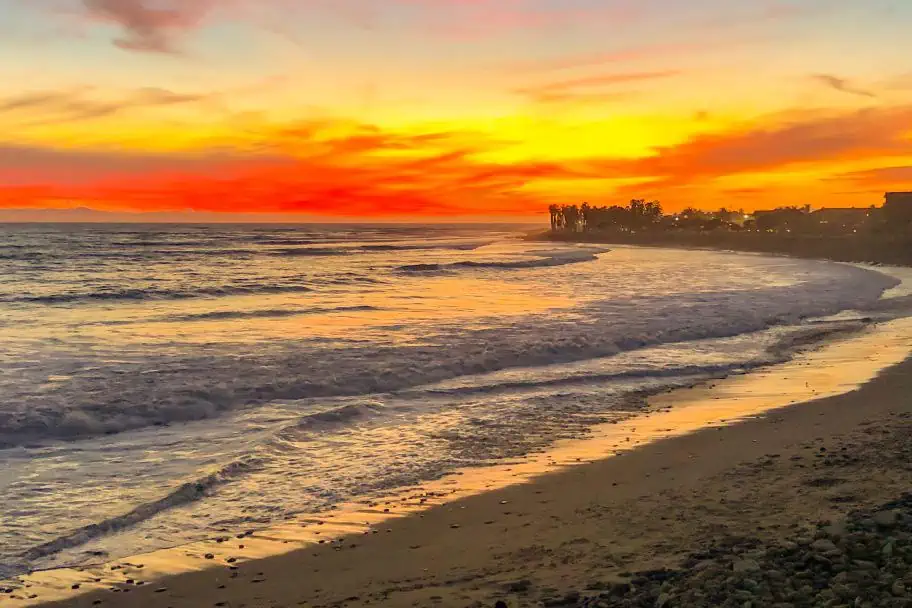
After finishing this simple eight‑step process, my sunset photo from Ventura, California, looked dramatically better. It’s not a masterpiece, but it’s far more appealing than the dull version I saw in my camera roll. All it needed was a little polishing in Adobe Lightroom.
And here’s a secret: if you think you need an expensive DSLR for great sunrise or sunset shots, this photo was taken on my iPhone 10. You don’t need high‑end gear to capture Instagram‑worthy images—just some effort and a bit of know‑how. Now get out there and start editing.
Other Beginner Photography Guides

If you found this travel photography article on how to fix sunset photos helpful, then you might enjoy some of my other travel photography articles and tutorials. To help you get started, I have linked to some of my favorite ones for you to review below!
| READ MORE: |
 |
| Exposure Blending for Dummies |
| READ MORE: |
 |
| Ten Important Tips for Avoiding Photography Issues When Traveling |
Don’t Forget to Subscribe to My Adventures!

Let Me Help You Save On Your Next Adventure!
‘Start Exploring Today’ Merchandise Available Now!
 |
 |
 |
 |
 |
 |
 |


















Leave a Reply